


Basic shortcut in microsoft word office
Display and use windows
| To do this | Press |
|---|---|
| Switch to the next window. | ALT+Tab |
| Switch to the previous window. | ALT+SHIFT+Tab |
| Close the active window. | CTRL+W or CTRL+F4 |
| Restore the size of the active window after you maximize it. | ALT+F5 |
| Move to a task pane from another pane in the program window (clockwise direction). You may have to press F6 multiple times. | F6 |
| Move to a task pane from another pane in the program window (counterclockwise direction). | SHIFT+F6 |
| When more than one window is open, switch to the next window. | CTRL+F6 |
| Switch to the previous window. | CTRL+SHIFT+F6 |
| Maximize or restore a selected window. | CTRL+F10 |
| Copy a picture of the screen to the Clipboard. | PRINT SCREEN |
| Copy a picture of the selected window to the Clipboard. | ALT+PRINT SCREEN |
Use dialog boxes
| To do this | Press |
|---|---|
| Move to the next option or option group. | Tab |
| Move to the previous option or option group. | SHIFT+Tab |
| Switch to the next tab in a dialog box. | CTRL+Tab |
| Switch to the previous tab in a dialog box. | CTRL+SHIFT+Tab |
| Move between options in an open drop-down list, or between options in a group of options. | Arrow keys |
| Perform the action assigned to the selected button; select or clear the selected check box. | SPACEBAR |
| Select an option; select or clear a check box. | ALT+the letter underlined in an option |
| Open a selected drop-down list. | ALT+DOWN ARROW |
| Select an option from a drop-down list. | First letter of an option in a drop-down list. |
| Close a selected drop-down list; cancel a command and close a dialog box. | ESC |
| Run a selected command. | Enter |
Use edit boxes within dialog boxes
Note An edit box is a blank in which you type or paste an entry, such as your user name or the path of a folder.
| To do this | Press |
|---|---|
| Move to the beginning of the entry. | HOME |
| Move to the end of the entry. | END |
| Move one character to the left or right. | LEFT ARROW or RIGHT ARROW |
| Move one word to the left. | CTRL+LEFT ARROW |
| Move one word to the right. | CTRL+RIGHT ARROW |
| Select or cancel the selection of one character to the left. | SHIFT+LEFT ARROW |
| Select or cancel the selection of one character to the right. | SHIFT+RIGHT ARROW |
| Select or cancel the selection of one word to the left. | CTRL+SHIFT+LEFT ARROW |
| Select or cancel the selection of one word to the right. | CTRL+SHIFT+RIGHT ARROW |
| Select from the cursor to the beginning of the entry. | SHIFT+HOME |
| Select from the cursor to the end of the entry. | SHIFT+END |
Use the Open and Save As dialog boxes
| To do this | Press |
|---|---|
| Display the Open dialog box. | CTRL+F12 or CTRL+O |
| Display the Save As dialog box. | F12 |
| Open the selected folder or file. | Enter |
| Open the folder one level above the selected folder. | BACKSPACE |
| Delete the selected folder or file. | DELETE |
| Display a shortcut menu for a selected item such as a folder or file. | SHIFT+F10 |
| Move forward through options. | Tab |
| Move back through options. | SHIFT+Tab |
| Open the look in list. | F4 or ALT+I |
Undo and redo actions
| To do this | Press |
|---|---|
| Cancel an action. | ESC |
| Undo an action. | CTRL+Z |
| Redo or repeat an action. | CTRL+Y |
Access and use task panes and galleries
| To do this | Press |
|---|---|
| Move to a task pane from another pane in the program window. You may have to press F6 multiple times. | F6 |
| When a menu is active, move to a task pane. You may have to press CTRL+Tab multiple times. | CTRL+Tab |
| When a task pane is active, select the next or previous option in the task pane. | Tab or SHIFT+Tab |
| Display the full set of commands on the task pane menu. | CTRL+SPACE BAR |
| Perform the action assigned to the selected button. | SPACE BAR or Enter |
| Open a drop-down menu for the selected gallery item. | SHIFT+F10 |
| Select the first or last item in a gallery. | HOME or END |
| Scroll up or down in the selected gallery list. | PAGE UP or PAGE DOWN |
Close a task pane
- Press F6 to move to the task pane, if it is necessary.
- Press CTRL+SPACEBAR.
- Use the arrow keys to select Close, and then press Enter.
Move a task pane
- Press F6 to move to the task pane, if it is necessary.
- Press CTRL+SPACEBAR.
- Use the arrow keys to select Move, and then press Enter.
- Use the arrow keys to move the task pane, and then press Enter.
Resize a task pane
- Press F6 to move to the task pane, if it is necessary.
- Press CTRL+SPACEBAR.
- Use the arrow keys to select Size, and then press Enter.
- Use the arrow keys to resize the task pane, and then press Enter.
Access and use available actions
| To do this | Press |
|---|---|
| Display the shortcut menu for the selected part. | SHIFT+F10 |
| Display the menu or message for an available action or for the Autocorrect Options button | ALT+SHIFT+F10 |
| Move between options in a menu of available actions. | Arrow keys |
| Perform the action for the selected item on a menu of available actions. | Enter |
| Close the available actions menu or message. | ESC |
How to turn of full screen mode in microsoft word office
Turn Off Full Screen Mode
Full screen mode displays as much of your document on the screen as possible. In this mode, Word removes screen elements like the menu bar, toolbars, and scroll bars. To restore your toolbars and menus, turn off full screen mode.- If a document is open, do one of the following:
- Press ALT+V to display the View menu, and then press U to turn off full screen mode.
- If the Full Screen toolbar is visible, click Close Full Screen.
- If a document is not open, follow these steps:
- Press CTRL+N to start a new document.
- Press ALT+V to display the View menu, and then press U to turn off full screen mode.
For more information about full screen mode, click the following article number to view the article in the Microsoft Knowledge Base:
290947 Menus and toolbars
disappear and "Repeat Value:8" is displayed on Status bar
How to turn on the default toolbar in microsoft word
Turn On the Default Toolbars
On the View menu, point to Toolbars. Note whether any toolbars are selected. If none of the toolbars is selected, select those that you want. To do this, click the toolbar name. Repeat this procedure for each toolbar that you want to be displayed. The toolbars selected by default are the Standard and Formatting toolbars, as well as the Task Pane.Note If you cannot see the menu bar, press ALT+V to display the View menu, and then press T to display the Toolbar menu.
Quit and restart Word. If Word starts correctly, you have resolved the issue. The issue is that the default toolbars and menu bar were turned off when you quit Word, and Word retained those settings.
CLASSIC MENU FOR MSWORD
 Bring back the classic menus and tool bars of Word 2003 to Microsoft Word 2007. You can use Word 2007 immediately without any training or tutorials if you used Word 2003 before. The software allows you to work with Word 2007 as if it were Word 2003. All the new features in Microsoft Word 2007 have been added into the Main Menu, Standard Toolbar and Formatting Toolbar. User can browse the whole menus with keyboard shortcuts (insert Q into the original shortcuts of Office 2003. For example: press Alt + T to open the "Tools" menu in Word 2003, you just need to press Alt, Q, T to open the "Tools" menu in Word 2007). Not only the main menu, standard and formatting tool bars, the new version offers more tool bars such as Comments, Proofing, Tracking, Mailings and Reference. You can display these tool bars as needed. Easy to show or hide build-in tabs on the Ribbon. Easy to show or hide the classic menus and tool bars. You can change the position of classic menus. Supports all languages that are supported by Microsoft Word 2007 including: English, French, German, Italian, Spanish, Portuguese, Japanese, Chinese, and more. Add the menus and tool bars to the Quick Access Toolbar, and you can use Word without the ribbon. Easy to enable or disable the menus and tool bars. Easy to install and uninstall. Quickly find and execute the command that you need. The Menus tab can be shown on the left of Home tab, or shown as the last tab.
****YOU CAN ALSO MODIFY THE CLASSIC MENU TO LOOK LIKE THIS ****

REPAIRING A CORRUPT DOCUMENT FILE
 Word doc file repair software is used to rescues most unopen-able Microsoft Word files, and makes
them open-able. Repair corrupt word document
file software works for ms word doc documents created by Microsoft Word 95, Word 97, Word 2000, Word XP and Word 2003. Professional word file repair software doc file restore tool correct corruption in corrupted Microsoft Word files and
documents. Word recovery software restores text and support saving of repaired document in RTF (rich text format).
Application repair data from corrupt damaged word files and allows user to restore damaged multiple .doc documents at a time. MS Word doc file repair tool can repair and restore corrupted, damaged, or unopenable MS word files and documents. MS Word repair software supports all version files of Microsoft Word create including MS Word XP, MS Word 2000, MS Word 97, MS Word 95. ? Corrupted MS Word File Recovery Application is very easy to use with user friendly interface and does not requires
specials technical skills to operate the software utility. Word file recovery software .doc restore tool successfully repair corrupt damaged Word documents doc files.


MSWORD DOCUMENT PASSWORD RECOVERY
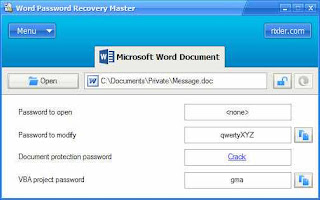
 Being unable to break or unlock word file password and face annoying situation. Get Perfect Data Solutions 100% secure and powerful Microsoft word password recovery program which is fully supportive to recover lost doc password just taking a short time and open your precious word document in original positions. MS Word file password remover tool enthusiastically extract lost or forgot word password when you getting error massages:- You are not authorized to perform that operation, You are not authorized to access that database. PDS excellent software retrieve word password instantly and provide you full authority to access locked word document file once again. Reliable and trustworthy doc file password remover tool immediately search word password with wizard process of Brute force attacks and dictionary attacks. Microsoft Word document password recovery program fairly scan password from open file password and modify file password. With excellent capability to decrypt file password and safely access word file in entire version of MS office word such as 95, 97, 2000, XP and 2003. PDS Microsoft word password recovery software is sharing with you some powerful key factor like-
* Extract word password from locked document file(.doc).
* Instantly recover lost password while password is too lengthy.
* Fully compatible Microsoft word versions 2003, XP, 2000, 97, 95.
* Retrieve password from word document password protected sheet.
* Word file password remover tool easily drag out multilingual password.
* Software also supported entire versions of OS including window vista and window 2007.
* Easily install and uninstall.
* User friendly interface technology with (GUI).
Freeware demo version allow you to view 3 initial digit of lost password and want to retrieve original password then get immediate license of Microsoft word password recovery software
MSWORD DOCUMENT RECOVERY
 MS Word being the most popular application for creating documents often gets corrupted because of lack of security features embedded in them. Most of these corruptions occur while downloading them as email attachments or
while working on them. This is because Word documents cannot be encrypted due to which they get infected with Trojans and macro viruses. Also, round- tripping, Windows registry corruption,
storage media crash, hardware failure, force quitting of MS Word and abrupt system shutdown causes
corruption in Word documents. In all these cases, severe data loss is common which at times becomes difficult to recover using the conventional methods. Microsoft Word document recovery tools, which are commercially available, can however resolve these issues. Tools like Kernel for Word repair help users to repair their corrupt Word documents and fix the major errors associated with Word corruption. Microsoft Word document recovery can be efficiently performed using this tool. The tool is capable of repairing
Word files which have been damaged by any of the fore mentioned factors. Furthermore, it is more reliable than the traditional methods of recovering damaged Word files including the use of Auto Recovery
Mode, Safe Mode, Draft Mode, etc. this Microsoft Word document recovery tool can easily troubleshoots most of the common errors users encounter while accessing corrupt Word files like ?Word
Cannot Open the Document, Word cannot open the existing [square] in Template file,
WINWORD caused an invalid page fault in module, A fatal exception error has occurred?, etc. With this
Microsoft Word document recovery software, users can recover all the texts, images, tables, OLE objects, graphics, hyperlinks and forms present in the damaged file without worrying about altered broken
layouts, missing fonts or images. All versions of MS Word including MS Word 2010, 2007, 2003, 2002, 2000 and 97 can be successfully repaired and recovered using Word recovery tool. Word Repair Utility for
Repairing Corrupt Doc and Docx Files of MS Word. Word repair software is the perfect solution a user can get to deal with corrupt or damaged Word .doc and .docx files.


